# Multi-cursor editing
{ .text-center .muted }
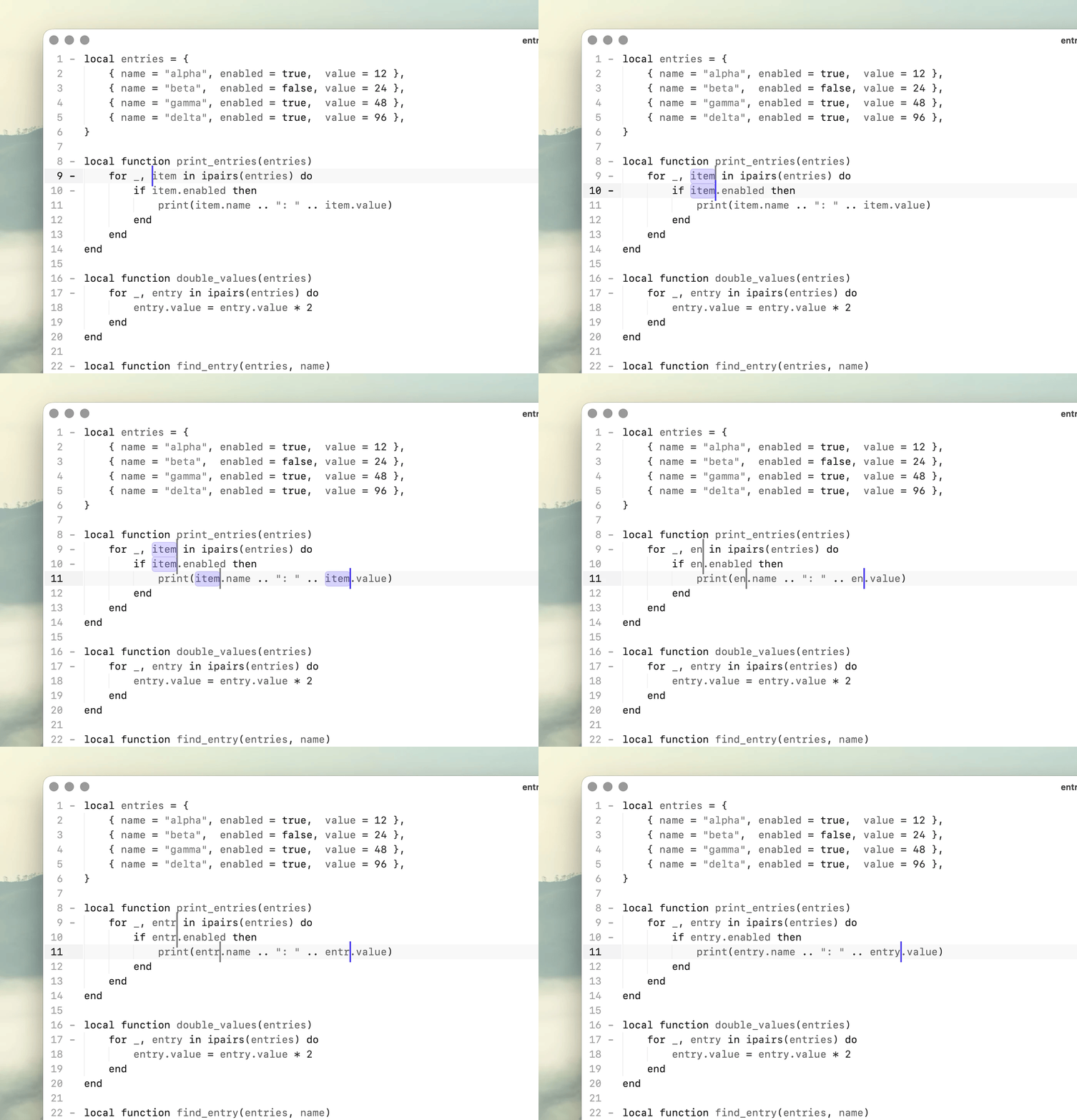
Edit multiple locations at once with additional cursors and selections.
Add cursors manually, select matching text, turn search results into cursors, or add a cursor to every selected line.
Once multiple cursors are active, typing and editor commands apply across all active locations.
## Adding cursors
Multiple cursors behave like independent editing positions.
Type to insert at every cursor, delete across every selection, or use navigation and selection commands to move and extend them together.
Each cursor follows the same command independently, so a multi-cursor edit can be built and adjusted using the same commands as a normal edit.
### Add a cursor with the mouse
| Action | Description |
|:--------------------------------------------------------------|:--------------------------------------------------|
| ⌘command Click | Add cursor or selection at another location. |
| ⌘command Double-Click | Add word as another selection. |
| ⌥option Drag | Add cursors vertically across multiple lines. |
When adding cursors vertically, lines that do not extend to the target column are skipped.
### Add cursors with the keyboard
| Action | Description |
|:--------------------------------------------------------------|:--------------------------------------------------|
| ⌃control ⇧shift ↑ | Add cursor on the line above. |
| ⌃control ⇧shift ↓ | Add cursor on the line below. |
This makes it easy to build a vertical set of cursors without using the mouse.
## Selecting matches
Multi-cursor selections can also be built from matching text.
### Select next match
| Action | Description |
|:--------------------------------------------------------------|:--------------------------------------------------|
| ⌘command E | Add the next exact match as another selection. |
Run it repeatedly to build the set of matches you want to edit.
### Remove last selected match
| Action | Description |
|:--------------------------------------------------------------|:--------------------------------------------------|
| ⌘command ⇧shift E | Remove the last selected match. |
## Other multi-cursor commands
### Add cursors to all matches from search
Search the current file with ⌘F, then esc to return focus to the editor.
| Action | Description |
|:--------------------------------------------------------------|:--------------------------------------------------|
| ⌘command ⌥option F | Add cursor to all matches. |
This turns the current search results into editable cursor positions.
It is useful when you want find-and-replace-like behavior while retaining direct control over each edit.
### Add a cursor to each line in a selection
Select multiple lines, open the command palette with ⌘⇧P, then run Add cursor to each line in selection.
A cursor is added to every line covered by the selection.
The lines do not need to have identical lengths or form a rectangular selection.
This is useful for column-like edits, lists, prefixes, suffixes, and other repeated changes across lines.
## Why multi-cursor editing?
Multi-cursor editing sits between editing one location at a time and applying a global transformation.
Instead of describing the change through find and replace or a regular expression, you build the set of locations interactively: with clicks, matching text, search results, vertical cursors, or one cursor per line.
Once the set is built, normal editing commands operate on all of those locations together.
You decide exactly which occurrences participate in the edit.